6 Problems With Apple’s iOS7 (And How to Fix Them)
Thursday, 03 October 2013 | by Pat's Picks
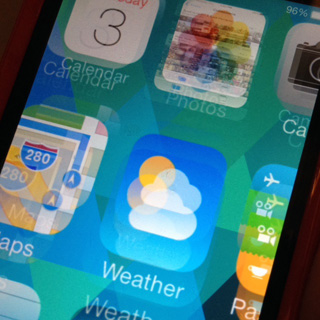
It feels like there’s a lot of “change for the sake of change” in Apple’s iOS7 update for iPhone and iPad. For the past week I’ve been finding my way around trying to undo some of the “improvements” in the new operating system. Here are some key problems and solutions:
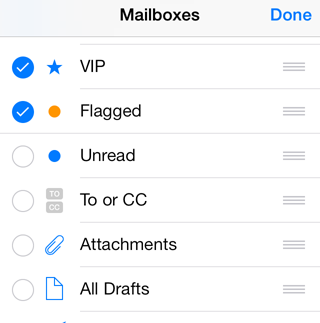
I collect e-mail from a lot of different accounts on my iPhone. But there are three primary accounts that were clustered together in the folder view under iOS6. Now they’re in alphabetical order.
The fix on this one is easy. From the “Mailboxes” view, click Edit in the top right corner. Three lines will appear to the right of each mailbox name. Touch the lines next to any mailbox to drag it to the order you prefer.
THE “LIST” VIEW HAS VANISHED FROM MY CALENDAR
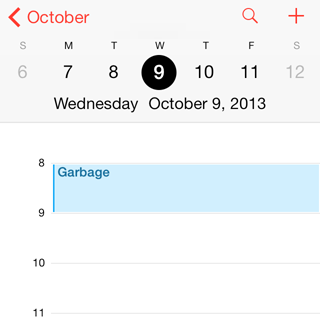
The “list” view was my favorite way to view my calendar on the small iPhone screen. At first, it appeared to have vanished entirely from the new operating system. But they’ve just hidden it. From the main calendar view touch the search (magnifying glass) icon. Done. You’re back in “list” view.
WHY WON’T SPOTLIGHT SEARCH FIND MY GMAIL APP? (OR ANY APP)
The default setting on the spotlight search directs it to return matches from the “contacts” before “apps.” So, in the case of Gmail, the app icon wasn’t actually missing from the search result. It was buried underneath about 100 contacts who use Gmail.
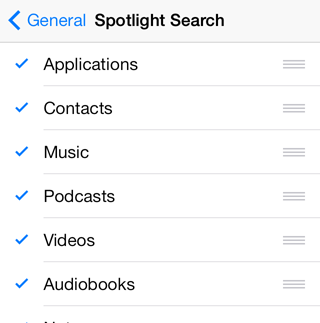
I’m not very good at organizing my apps into folders, so I use the search function frequently to find the app I need. Fortunately, there is a way to make apps the top priority in search results. Under “Settings, General” you’ll find a “Spotlight Search” option. For each category of content you can uncheck to exclude it from searches, or you can use the three lines to the right of the content category to drag it higher or lower in the priority sequence.
STOP THE DAMN MOVING AND ZOOMING
There’s way too much going on in iOS7. There’s always a zooming or flying transition from one screen to the next. It’s like when we first moved to non-linear editing computers in TV—we used fancy transitions just because we could.
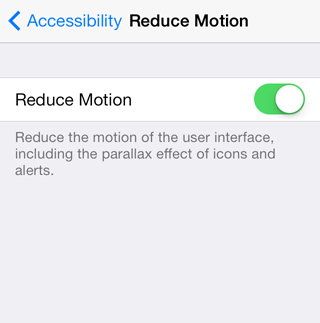
I haven’t figured out how to fully eliminate the dizzying transitions, but you can suppress some of the motion in the new OS by going to “Settings, General, Accessibility” and turning on the “Reduce Motion” option. Among other things, this tames the moving background “parallax” effect.
I’M NOT GETTING MY iMESSAGE MESSAGES
Three days after we upgraded, I got cranky with my wife Dawn and asked why she’s not answering the messages I send to her. The excuse was a good one: she wasn’t getting them. And I wasn’t getting hers.
There’s some sort of glitch in the upgrade that caused my messages to pile up in the outbox instead of going out to the recipient.
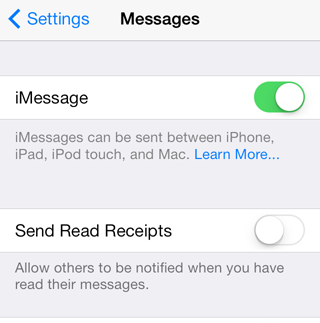
I couldn’t find a decisive fix to this one, but my fix was pretty simple. Under “Settings” go to messages and turn iMessage off. Power off the phone, then turn it back on. When it comes back up turn iMessage back on and make sure it’s configured for your correct Apple ID, phone number and e-mail address. Then try sending the message again. That should put you back in contact.
WHAT HAPPENED TO DAVID’S LAST NAME?
Which David is this? All of my contacts are entered with first and last names. But some of them abruptly disappeared wtih the iOS7 upgrade. My phone was on a first name basis with everybody—even when there were 10 people with the same first name in my address book.
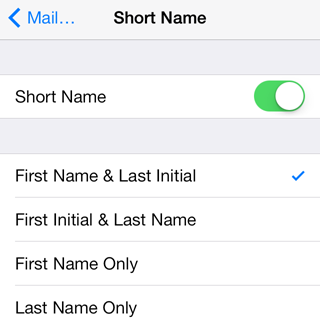
As with many of the other changes reviewed here, there is a setting buried deep in the menus to make things right. Under “Settings → Mail, Contacts, Calendars” you can scroll down for an option called “Short Name.” Then you get a choice between turning these abbreviated names off completely, or switching them to another format such as “Last Name Only” or “First Initial and Last Name.”